
Website accessibility used to be something people meant to get to eventually. For many organizations, ADA compliance now has deadlines attached. Here’s what it means, who it applies to, and why your PDFs deserve as much attention as your web pages.
A quick note
This is a general overview, not legal advice. If you have specific compliance obligations, talk with your attorney.
What “accessible” means
An accessible website works for people with disabilities, including people who are blind and use screen readers, people who can’t use a mouse, and people with low vision or hearing loss. The standard most rules point to is the Web Content Accessibility Guidelines, known as WCAG. Level AA is the usual target.
In practice, that means things like:
- Images have text descriptions a screen reader can read aloud.
- Everything works with a keyboard, not just a mouse.
- Text has enough contrast against its background.
- Form fields are properly labeled.
- Videos have captions.
Who has to comply
Public entities. In 2024, the U.S. Department of Justice issued a rule under Title II of the ADA requiring state and local governments to make their web content and mobile apps meet WCAG 2.1 Level AA. Larger entities, serving populations of 50,000 or more, had until April 24, 2026. Smaller entities and special districts have until April 26, 2027. That includes townships, school districts, and public libraries. Deadlines and details can change, so check current DOJ guidance.
Businesses. Title III of the ADA covers businesses open to the public, and courts have increasingly applied it to websites. There’s no single technical standard written into the regulations for businesses, but WCAG is the benchmark used in most cases.
PDFs are the part everyone forgets
Meeting agendas, minutes, forms, newsletters, and reports are often posted as PDFs. Those count as web content too. A PDF that’s really just a scanned image is unreadable to a screen reader, and even text-based PDFs usually need work.
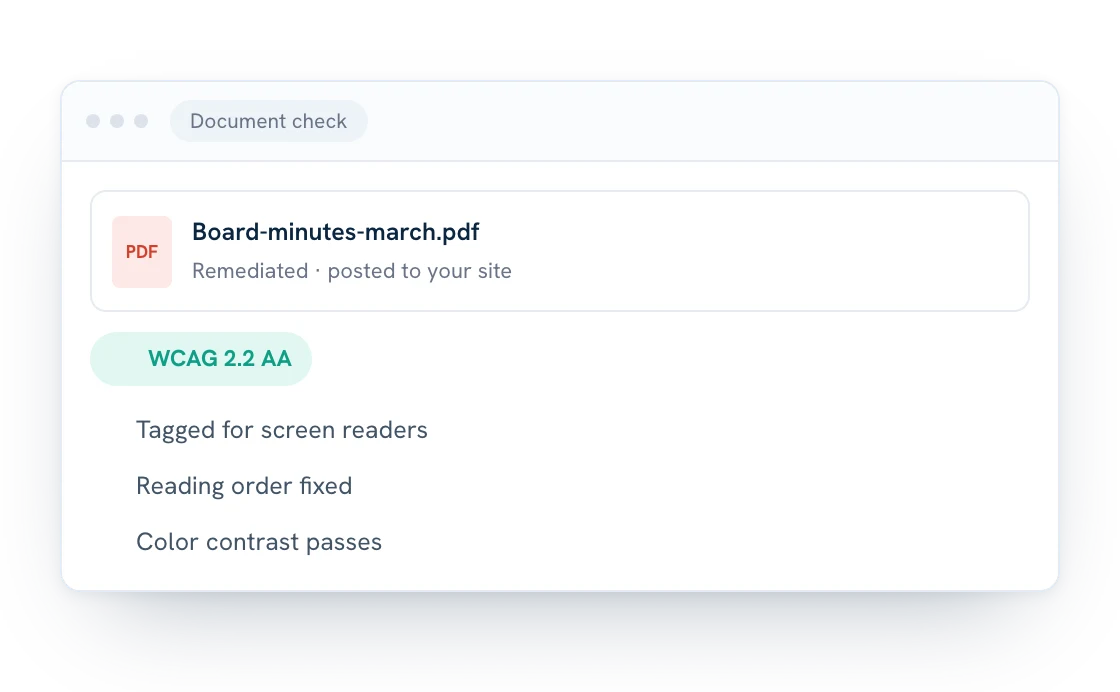
Remediating a PDF typically involves:
- Adding tags so a screen reader understands headings, lists, and tables.
- Setting the correct reading order.
- Adding text descriptions for images and charts.
- Marking up table headers so data makes sense when read aloud.
- Setting the document language and title.
Where to start
- Take inventory. List the documents on your site and how often each is used.
- Prioritize. Start with what people actually need: current agendas, forms, and frequently visited pages.
- Fix the source. Build accessibility into the Word templates you create PDFs from, so new documents start out closer to compliant.
- Clean house. Outdated documents nobody needs can be archived or removed.
- Review the website itself. Documents are only part of it.
An honest note on quick fixes
No website is accessible by default, and one-line widgets that promise instant compliance don’t fix the underlying problems. Accessibility is done page by page and document by document. We’d rather tell you exactly what’s been done and what hasn’t.
How we help
We handle PDF remediation through our partner, ADAComply. If we host your site, remediated documents post automatically, so you never have to leave your dashboard. Website accessibility upgrades are available as a separate add-on. Learn how PDF remediation works.